Lab 4: Manage configurations with Golden Config
Part 6. Fun with config compliance and remediation pt.2
1. Once again, let’s apply the changes we made to our templates on the network devices. Navigate to Nautobot

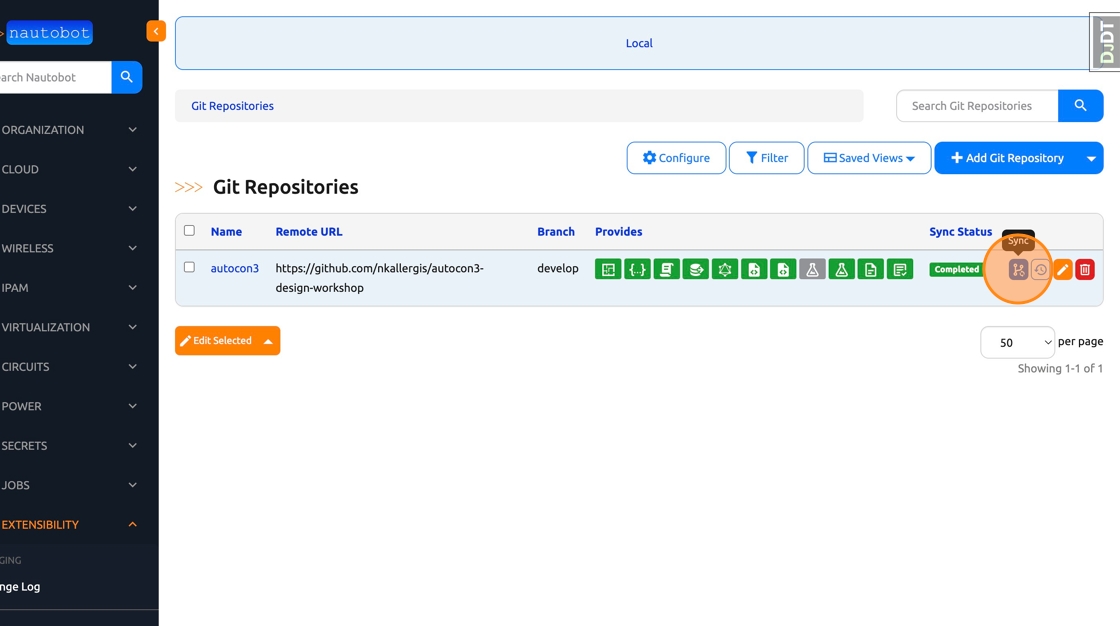
2. Click “Extensibility -> Git Repositories”

3. Sync the repo by clicking the blue sync button
4. Click “Jobs -> Jobs” in the left navbar

5. Run the “Execute All Golden Configuration Jobs - Multiple Device” Job again.

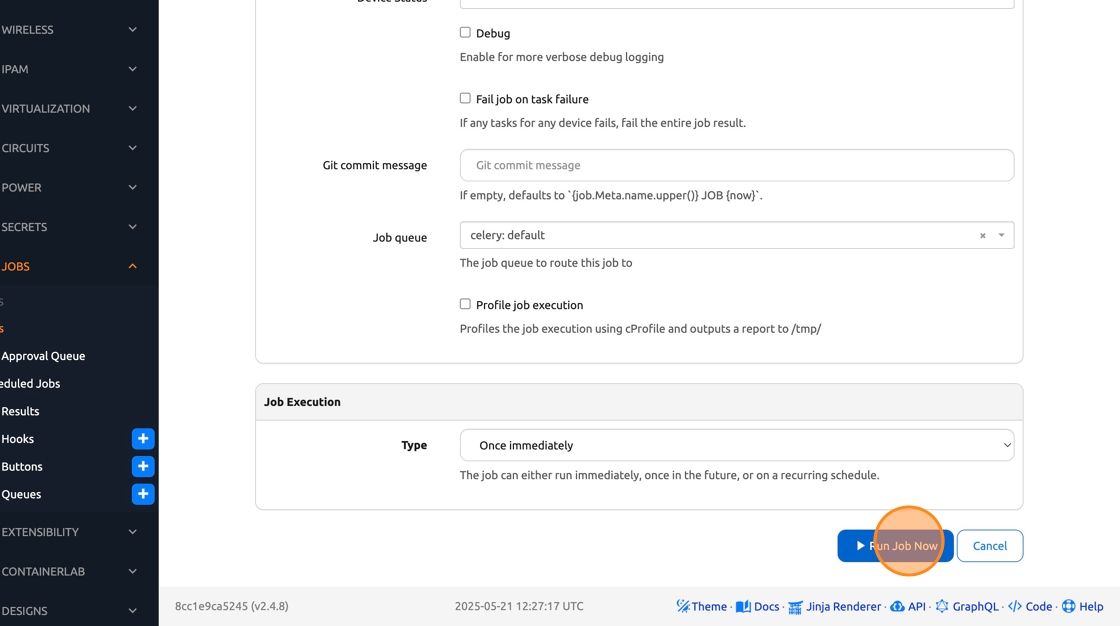
6. Click “Run Job Now”
7. Click “Golden Config” in the left navbar to expand the sub menu

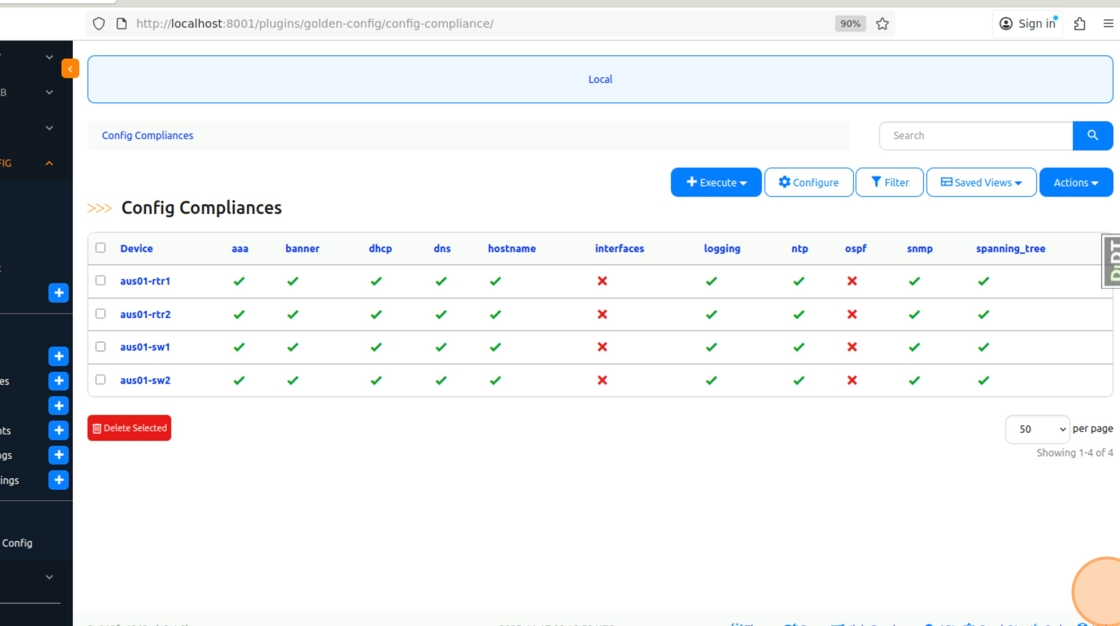
8. Click “Config Compliance” in the sub menu

9. As you can see, after the changes we made to our templates, the running configs differ from the intended ones in regards of the OSPF and Interfaces segments
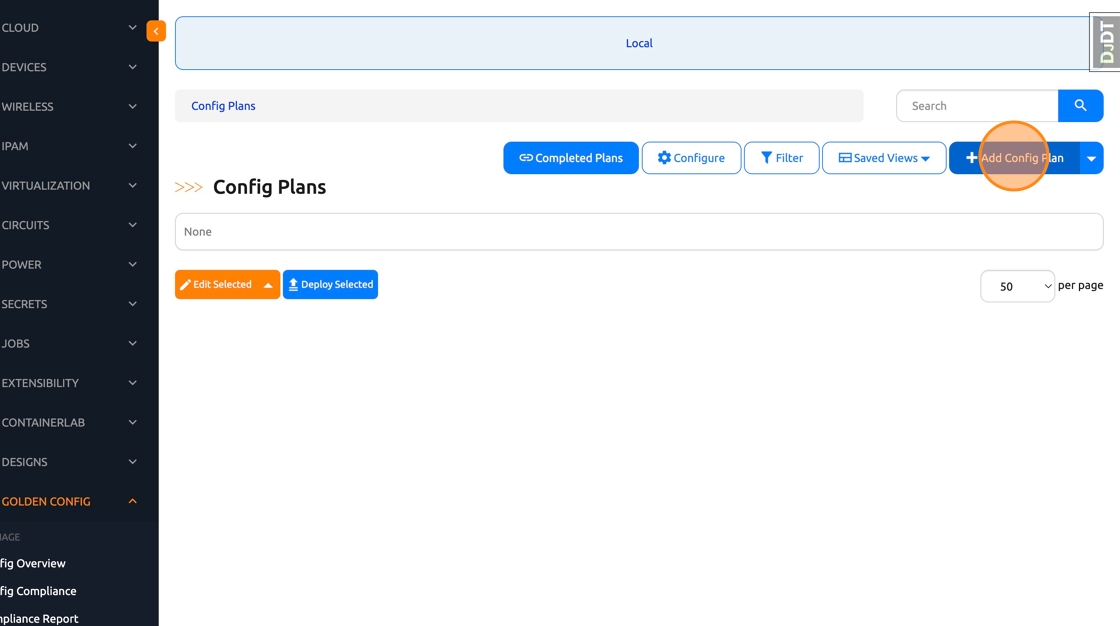
10. In order to remediate this, click “Config Plans” in the left navbar

11. Click “Add Config Plan”
12. Select the “Missing” option.

13. Click the “Feature” dropdown.

14. Select “Interfaces” and “OSPF”

15. Click “Generate”
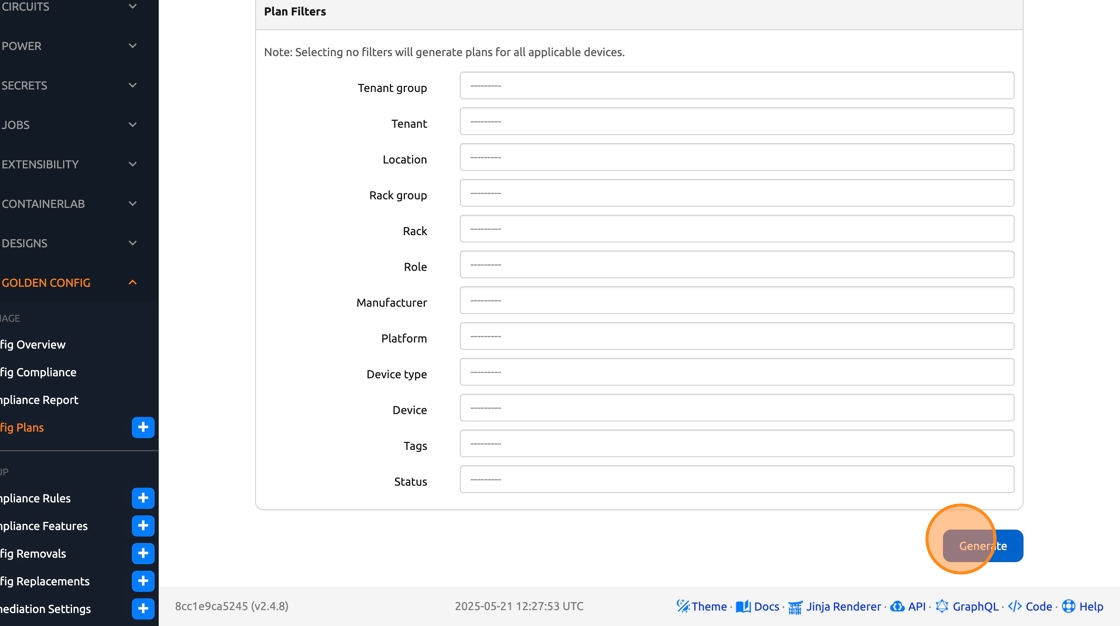
16. Click “Close”
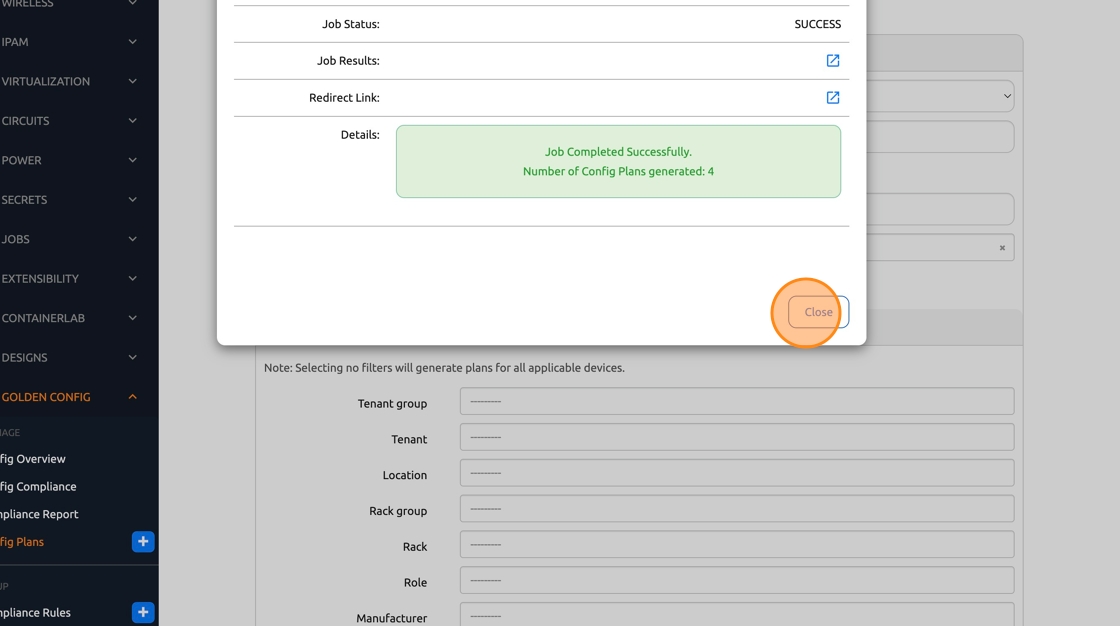
17. Click “Config Plans” in the left navbar

18. Select all plans in order to approve them

19. Click “Edit Selected”

21. Click “Approved”

22. Click “Apply”

23. Click “Config Plans” in the left navbar
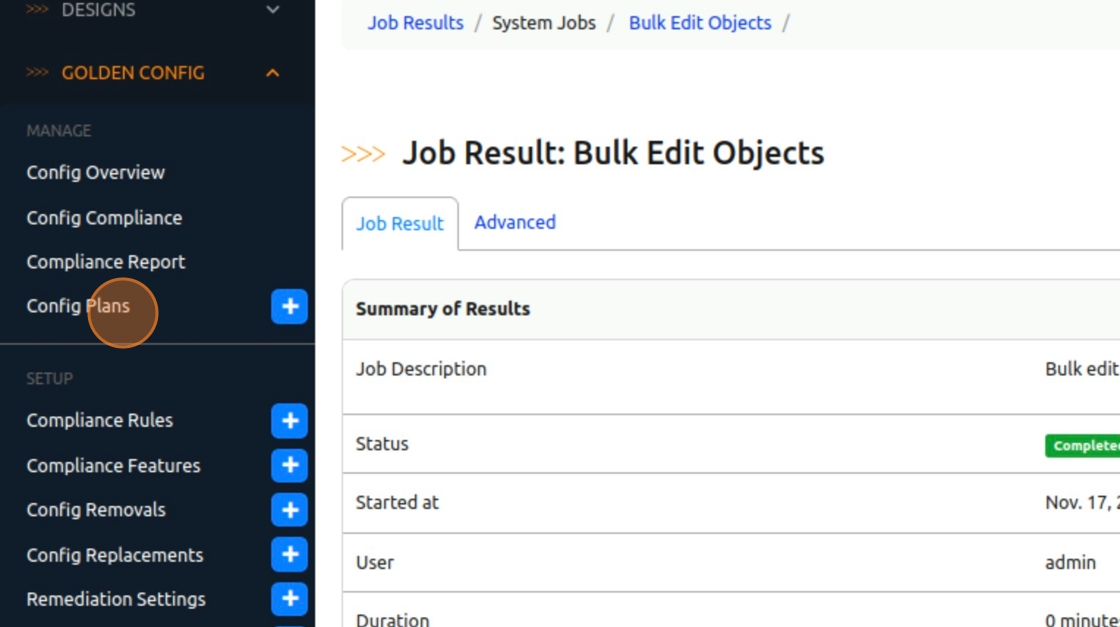
24. Select all plans again in order to deploy them to the nodes

25. Click “Deploy Selected”

26. Click “OK”
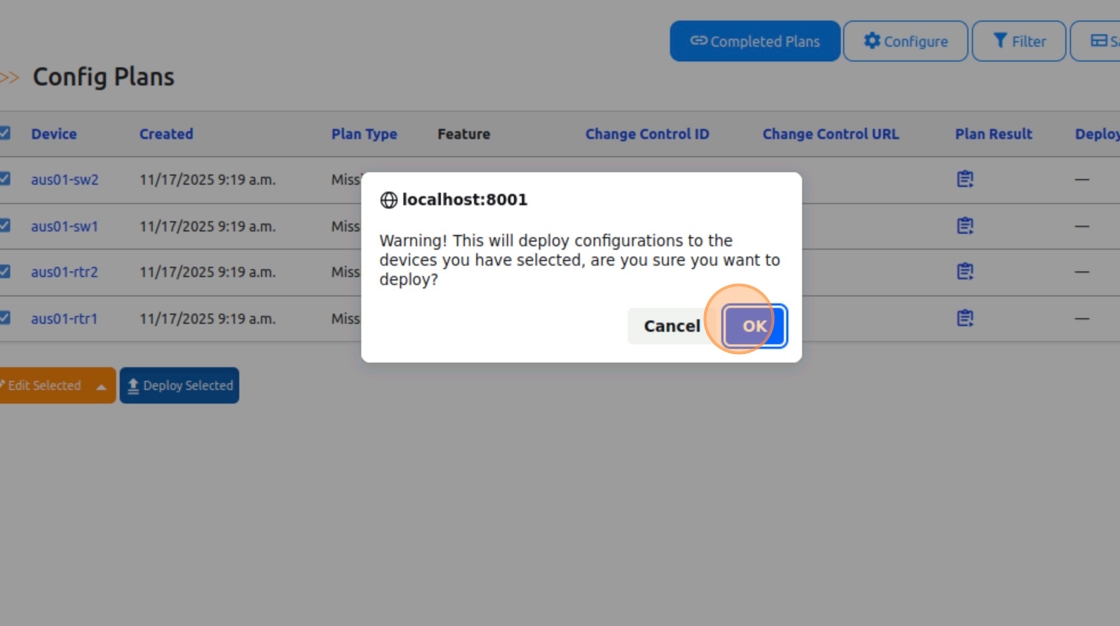
27. Click “Close”

28. Last, let’s verify that the changes have been applied to the devices. Click “Jobs -> Jobs” in the left navbar

29. Run the “Execute All Golden Configuration Jobs - Multiple Device” Job again.

30. Click “Run Job Now”

31. Click “Golden Config” in the left navbar to expand the sub menu

32. Click “Config Compliance” in the sub menu

33. As you can see, after the remediation steps, running configurations now match our intended

| ⬅️ Previous | 🏠 Home | Next ➡️ |