Connect to your dev machine
1. Navigate to https://portal.qtorque.io/login/Network-to-Code
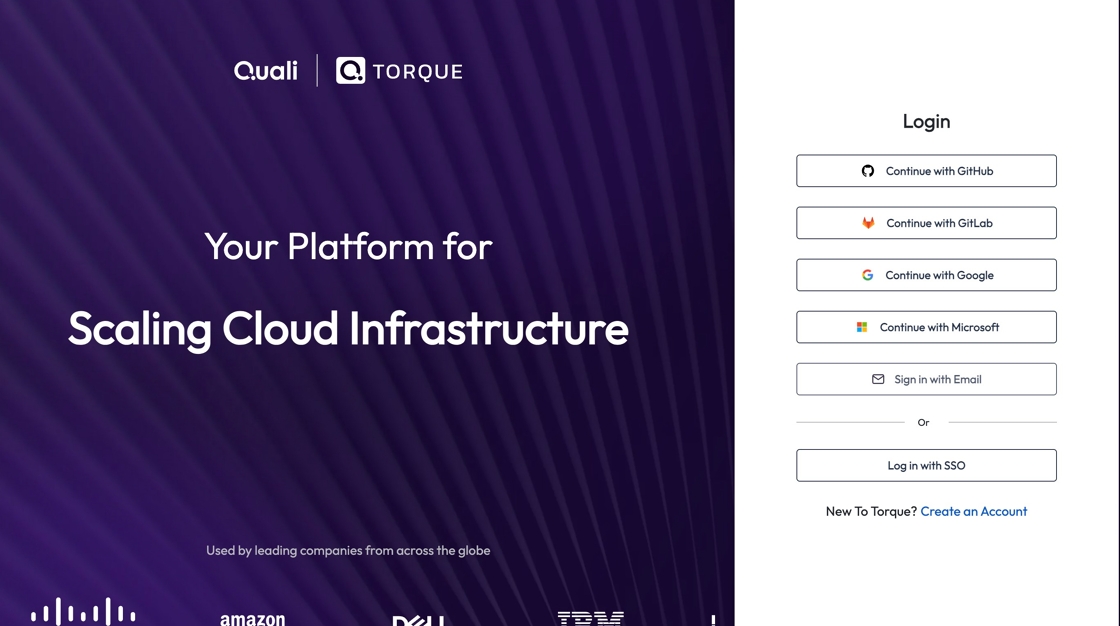
2. Click on “Sign in with Email”
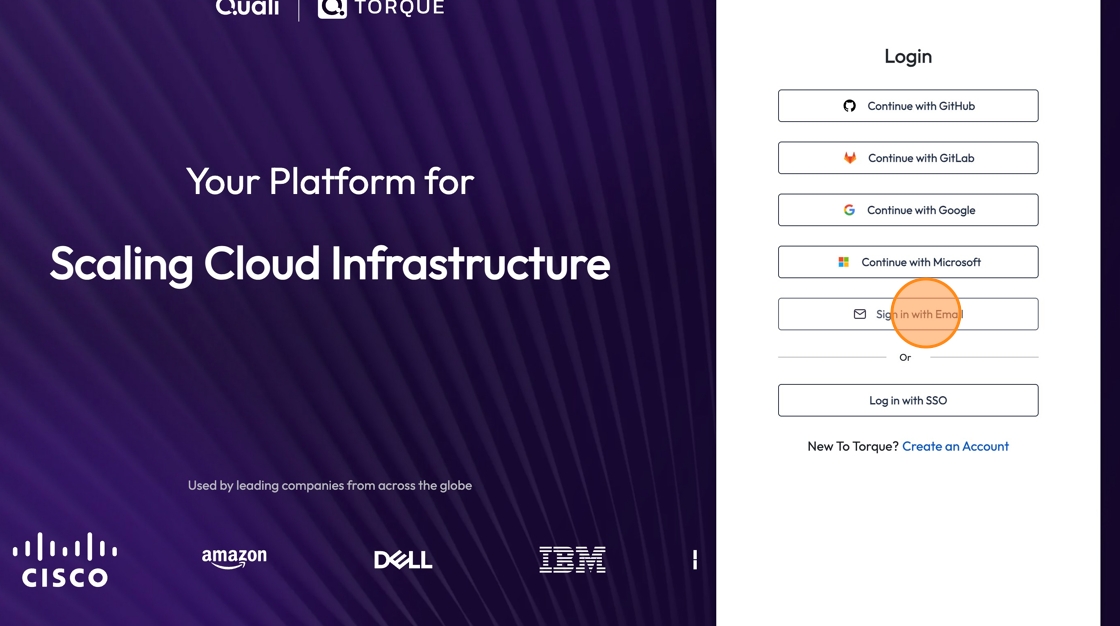
3. Enter the username (email) and password you received in your email.
If you are a returning user and don’t know your password, click “Forgot your password?” and enter your email address to send instructions on how to reset your password.
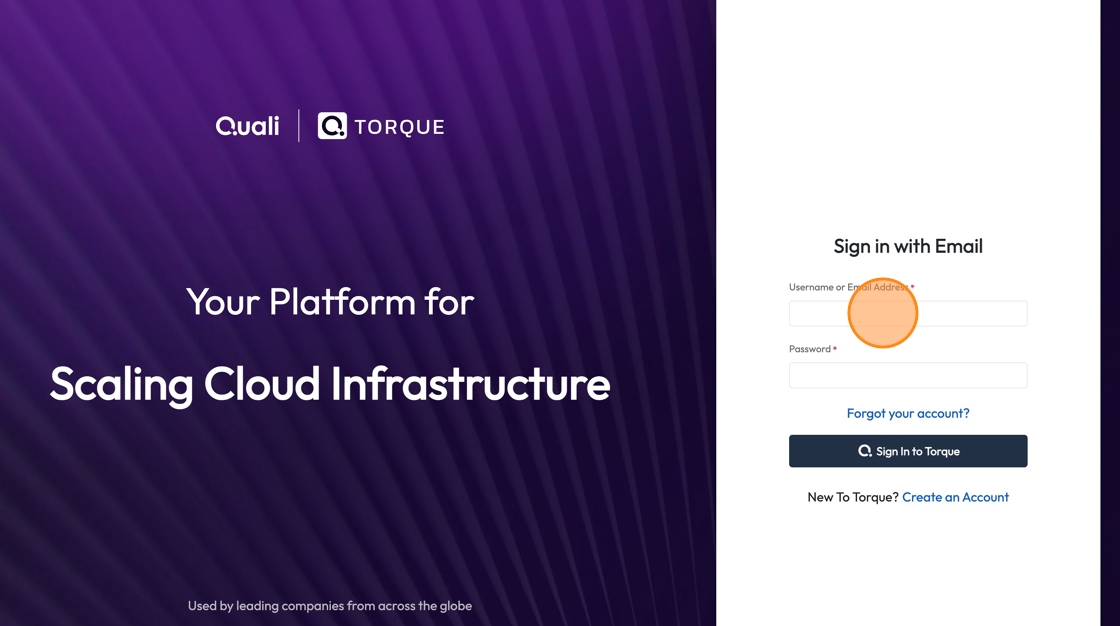
4. Click “Sign in to Torque”
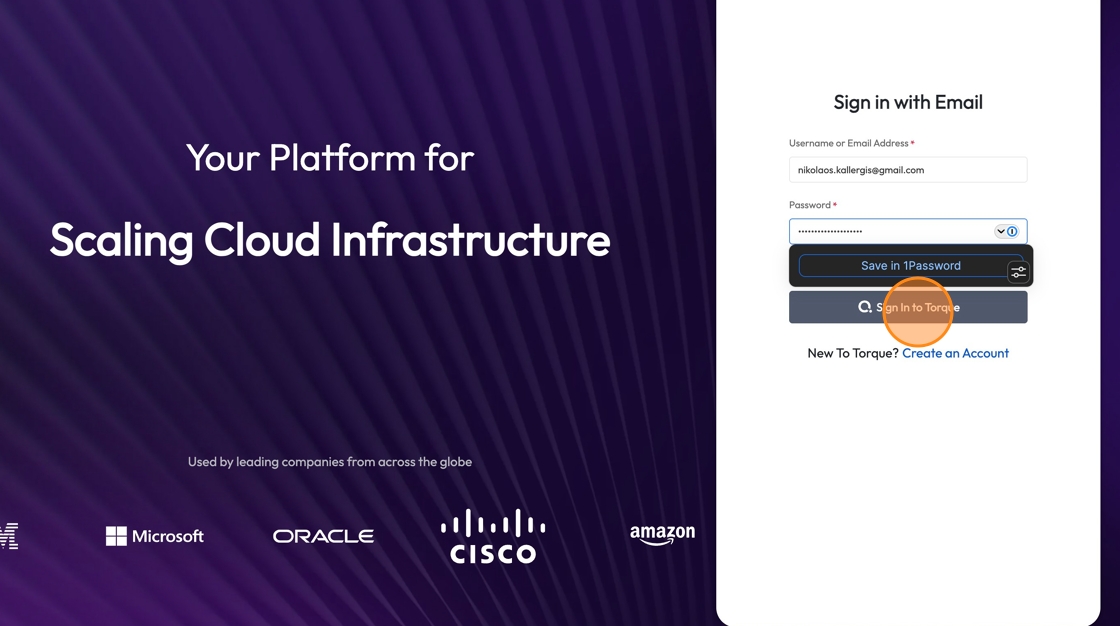
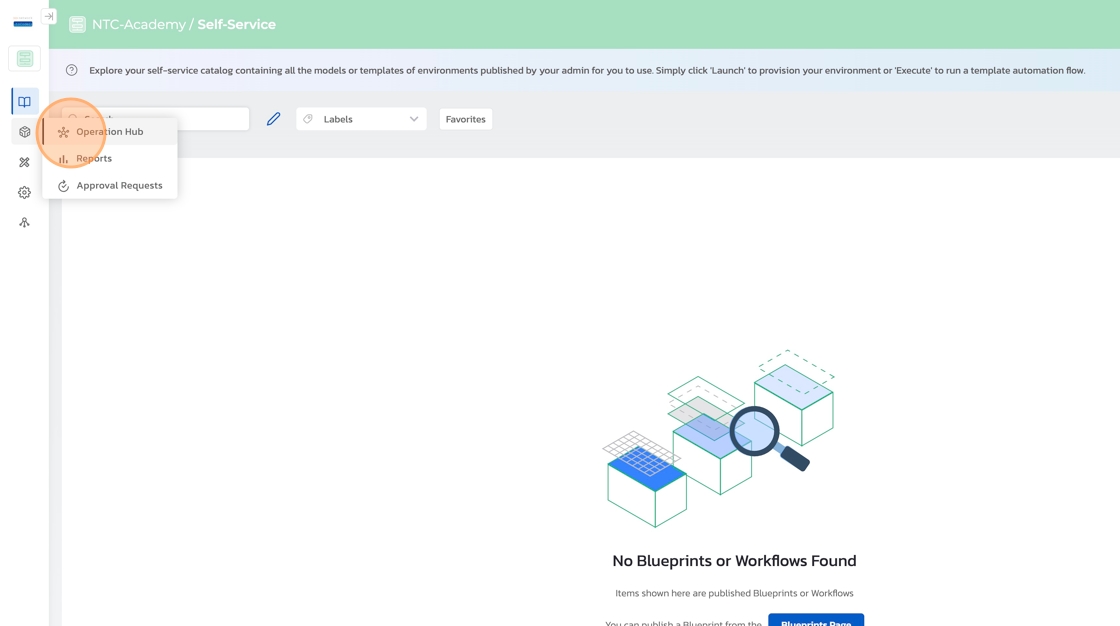
5. Once logged in, click “Operation Hub” on the left pane
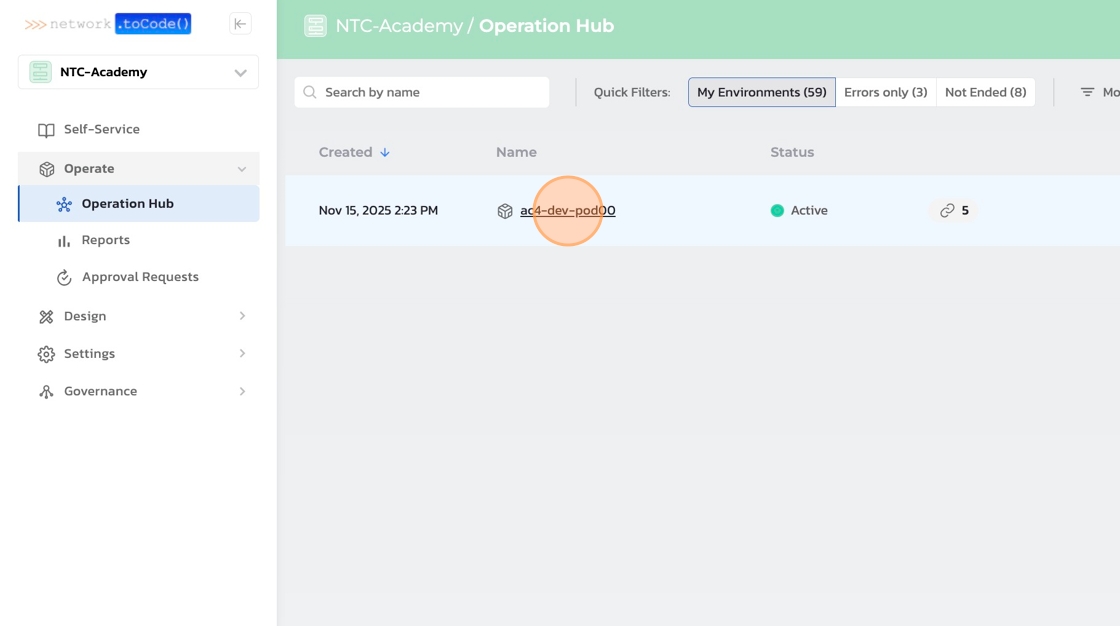
6. Click the name of your active pod, “ac4-workshop-podXX”
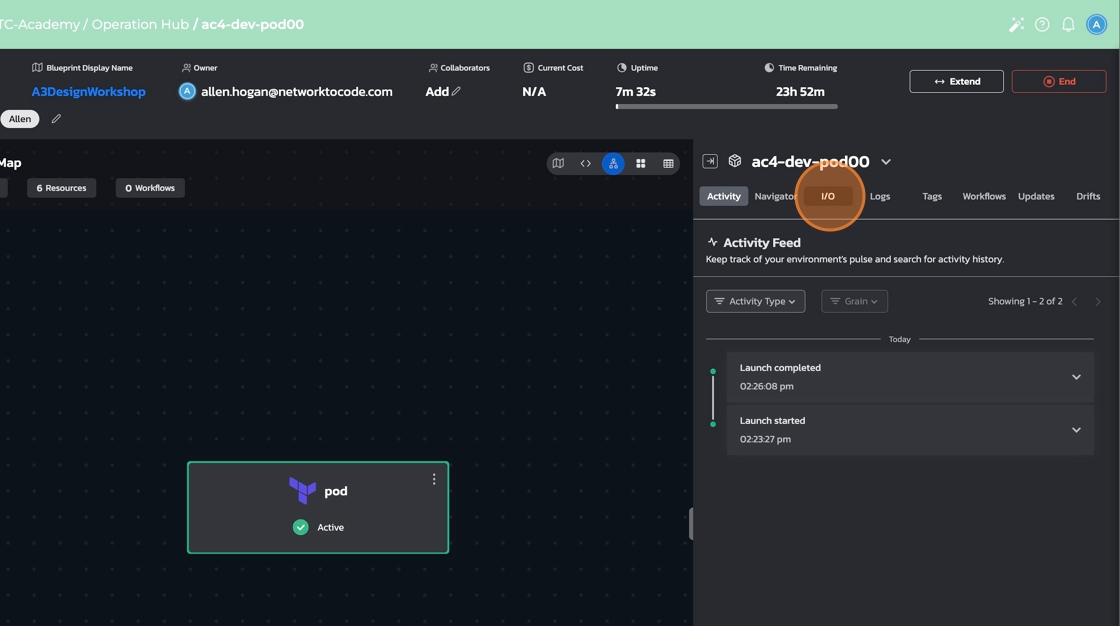
7. Click “I/O” tab and look for the “Quick Access” section
8. Click on the link for “Pod Desktop Environment”

9. You will be presented with a virtual desktop for your dev machine
If you are unable to access the virtual desktop, you most likely have software preventing the RDP connection to the host. You can try connecting using a pure HTTP connection by navigating to https://{YOUR_POD_NAME}.cloud.networktocode.com/guacamole/#/. Enter the SSH username and password, then click “Login”. Click “jumphost-rdp” to then access the pod.
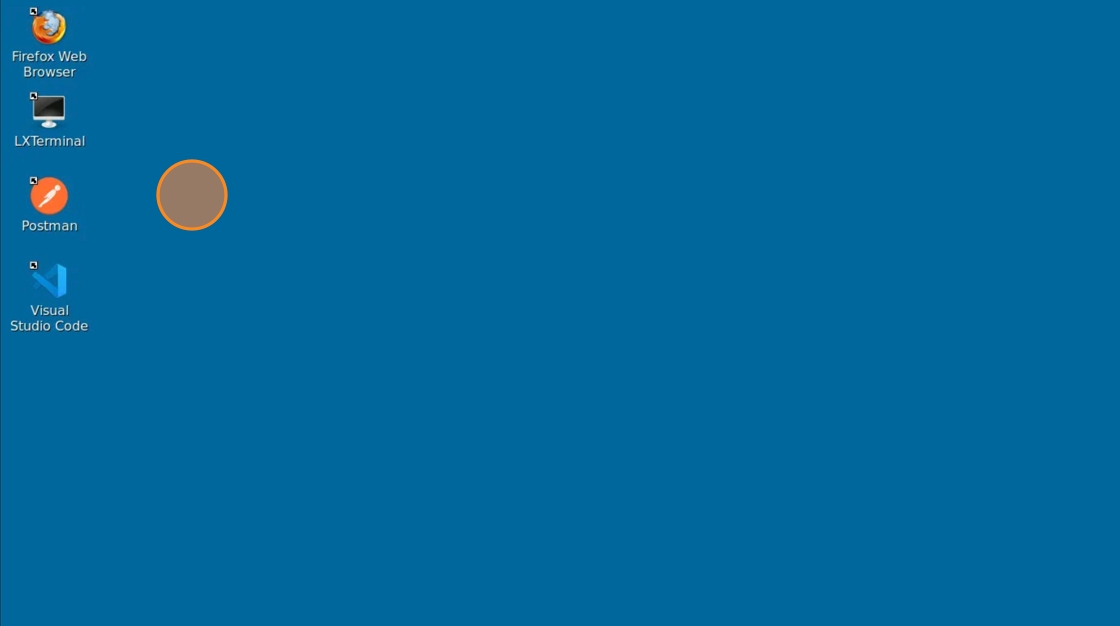
10. A popup might appear and ask you to allow access to your clipboard. Click “Allow”.
| 🏠 Home | Next ➡️ |